My 10 Favorite Tips for Increasing Windows 2000 Terminal Server Performance
Get your registry editor ready and open up Win2K Group Policy! Here's 10 things you can do right now to boost your server performance.
by Ron Oglesby
12/18/2000 -- Whether you are new to Microsoft's Windows 2000 Terminal Services or have been around since the idea began with Citrix Systems' Winframe, we are all looking for the same thing: ways to make our servers hummmm. To achieve this is not easy. And to get that extra performance out of your servers is even tougher. Those of us who have been around these multi-user machines for a while know that there are a ton of tricks to help move you into application hosting nirvana. So I am here to let 10 of the technical cats out of the bag, so to speak. These are not unknown tips, and they are by no means the only changes you can make to increase performance, but they are 10 of my favorites.
As always, make a system backup and a backup of the registry prior to implementing any of these changes. And always test changes in a non-production environment first. Now that the technicalities are out of the way, let's get started:
Tip #1: Set the 2nd Level Data Cache in the Registry
Microsoft says that NT/2000 will attempt to detect the amount of L2 cache on the processors from the HAL. If the system is not able to detect the processor cache it will set the following registry entry to a value of 0. This value tells NT and 2000 that the processors in your server have 256K of L2 cache.
HKEY_LOCAL_MACHINE\System\Current Control Set\Control\Session Manager\Memory Management
"SecondLevelDataCache"= 0 REG_DWORD
Meaning that you paid good money for the processors with extra cache but the operating system is not using it. In some of Microsoft's Q articles they state no performance increase will be seen from setting this value correctly. Most of us in the industry wonder, "Why have the entry then?" In almost every case I have seen of a server running hot on the processor side, we were able to increase performance by setting this value to the actual size of the cache in K.
To do this, open the entry in Regedit or Regedt32 (see Figure 1, below, for instructions) and set this entry to the decimal value of your cache in K. For example, if you have 1 MB worth of L2 cache on each processor this needs to be set at 1024. (NOTE: Do not add up all the processors cache as a total -- it should be the value of cache on the individual processors.)
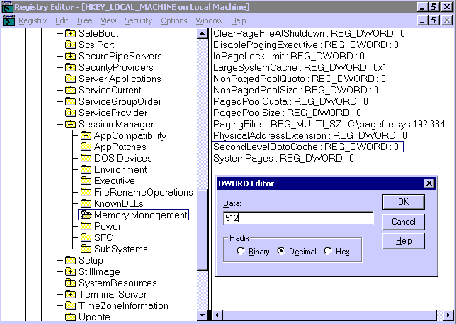
Figure 1, Working with Regedit: The registry can be accessed and edited using Regedit.exe or regedt32.exe. I prefer regedt32 for editing but regedit has search capabilities that are extremely useful. In either case you will need to backup the registry hive you are working on. With regedit, this is done by exporting the key; in regedt32 you should back up the hive.
Tip #2: Disable Paging of the Windows NT Executive
Win2K (and NT, too) uses a swap file. We all know this. It takes blocks of memory, or pages, and writes them out to the hard disk to free up physical RAM for other applications or system processes needing memory. No big deal here.
But the Win2K system will also page out some of its own kernel code and drivers to the hard disk. Sounds funny, doesn't it? This was originally intended for machines with limited amounts of RAM, allowing the system to free up memory for applications to use. But on a system with at least 128 MB, you can stop this from happening. How does this help you? Servers running as terminal servers tend to have large amounts of RAM (well over 128), and will see an increase in operating system performance by stopping this paging of the Windows Executive.
Note that Microsoft articles tend to conflict with each other on this item. In article Q184419, Microsoft states that this may "decrease the response time on systems with large amounts of RAM." Interesting. Compare this to its "Instant Rules of Thumb for Tuning and Sizing NT Server" paper, where it states the exact same procedure will result in a performance increase on servers with large amounts of RAM.
I have almost always seen a performance boost on the operating system side when this is done, and believe it's worth it. To stop paging the NT Executive, set the following registry entry:
HKEY_LOCAL_MACHINE\System\Current Control Set\Control\Session Manager\Memory Management
"DisablePagingExecutive"= 1 REG_DWORD
Tip #3: Stop Unnecessary Processes from Running in Each User's Session
One of the unique things about Terminal Services is that multiple users all log onto the same machine concurrently. The problem here is that applications sometimes tend to load services per-USER instead of per-MACHINE. Take a quad processor server hosting around 70 users. Add one process for each user. Say this process takes about a fourth of a percent of processor time, plus a MB or two of RAM. You now have a server running at about 17 percent of overall processor utilization, using about 140 MB RAM, and none of your users have started any applications.
These services or programs commonly load from the Local Machine hive in the registry, meaning that they run for each and every user that logs on. Some come right from Microsoft, like LOADWC.EXE (Web Check for IE), or from Citrix Systems, ICABAR.EXE (the admin tool bar in MetaFrame). They can also be called from the user's start-up folder, or the All User's profile. But their most likely spot is in the registry. Check out the following registry keys.
HKEY Local Machine\Software\Microsoft\Windows\Current Version\Run or (Load)
HKEY Local Machine\Software\Microsoft\WindwosNT\Current Version\Winlogon\Userinit
These are easy. Remove the calls from this location and they are gone for good.
HKEY Current User\Software\Microsoft\Windows\Current Version\Run
This is a bit trickier. These calls are coming from the user's registry and will need to be removed with a script at user logon. If you catch it before your users have ever logged on, you can make the change to the default user's profile. If not, then I would recommend a simple KIX script or even REGINI.EXE to remove the calls as the users log on.
Tip #4: Turn Off the Processing of Unused GPOs
When using Group Policy Objects in Win2K, you have the ability to keep the server from reading a part of the policy that is unused. A policy is, in effect, editing the registry. If all of your changes were made to the user configuration (HKEY Current User) then why have Windows spend time reading the computer configuration (HKEY Local Machine)? Since, in most cases, the changes made were in the user configuration, you can disable the Computer configuration for the Group Policy, and thereby see an increase in performance. See Figure 2, below, for instructions on how to do this in Win2K.
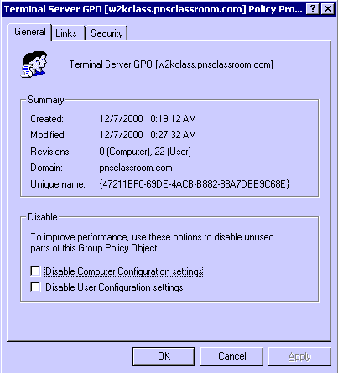
Figure 2, Disabling Computer Configuration or User Configuration in Group Policy: To disable either of these settings, select the Group Policy Object from within the Microsoft Management Console. Right-click the GPO and select properties. The settings can be disabled at the bottom of the General tab (shown in graphic).
Tip #5: Reduce Amount of Graphical Changes in a User's Session
In a Terminal Services environment, the user is really running a remote control type connection. This means that only video changes are sent from the server to the client to update the client's GUI. Because of this, the more graphical changes present in a session, the more video updates on the client, and the more video updates the client receives, the slower application appears to run.
By tweaking/verifying the proper graphic settings, you can increase the end user's application performance. This is done by setting WinStation User Overrides in the following location.
HKEY_LOCAL_MACHINE\System\Current Control Set\Control\Terminal Server\WinStations\RDP-tcp\
Create a key called "UserOverride" in the connection key you are using. If using Microsoft's RDP over TCP/IP, it would be in the "RDP-tcp" key. If you are using Citrix Systems' ICA protocol over TCP, then the sub-key under WinStations would be "ICA-tcp."
In the following examples we are using Microsoft's RDP over TCP/IP and are creating sub-keys under "UserOverride."
The first sub-key under UserOverride is "Control Panel\Desktop" with the following registry entries:
HKEY_LOCAL_MACHINE\System\Current Control Set\Control\Terminal Server\WinStations\
RDP-tcp\Control Panel\Desktop
"AutoEndTasks"="1" REG_SZ
"CursorBlinkRate"="-1" REG_SZ
"DragFullWindows"="0" REG_SZ
"MenuShowDelay"="10" REG_SZ
"SmoothScroll"=0 REG_Dword
"WaitToKillAppTimeout"= "20000" REG_SZ
"Wallpaper="="(none)" REG_SZ (none=no value specified)
The second sub-key is under the newly created "Control Panel\Desktop" and is called "WindowMetrics":
HKEY_LOCAL_MACHINE\System\Current Control Set\Control\Terminal Server\WinStations\
RDP-tcp\Control Panel\Desktop\WindowMetrics
"MinAnimate"="0" REG_SZ
To see a graphical representation of these changes, see Figure 3, below.
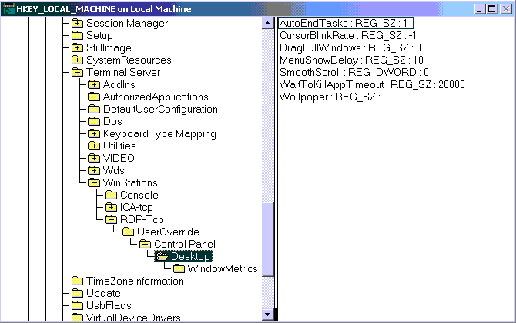
Figure 3, Creating a 'User Override Key': These settings will reduce some of the repetitive graphical changes that the users see and improve their end-user performance.
Tip# 6: Ensure Profile Size and Stability
In a majority of desktop environments, the user's profile is kept locally on the machine. In almost every Terminal Services environment with more than one server, the profile becomes an NT roaming profile. This in and of itself is not surprising. The problem is that most common applications (Internet Explorer, Office 2000, Lotus Smart Suite etc.) tend to save or cache their files in the user's profile, which can become a serious issue for logon and log off speeds as the profiles grow in size. I had one customer that had users with more than 50 MB in temporary Internet files alone. Needless to say their logon took eight or so minutes and their log off would generally fail in the copy phase and cause profile corruption.
First, let's limit the profile size with a group policy. You don't want to get crazy and restrict the profile size to 10K or anything like that, but using a policy to limit the size of the profile to five or 10 MB would not be out of hand at all.
In Win2K this can be accomplished through the Group Policy Object (GPO) attached to the Users OU or the Terminal Server's OU. Access the GPO through the MMC. You will find the Limit Profile Size option under User Configuration, Administrative Templates, System, Logon/Logoff. Enable this object and set your size limitation in KB (see Figure 4, below).
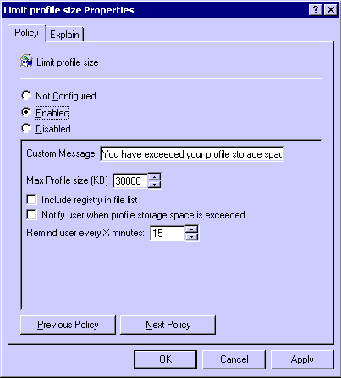
Figure 4, Limiting Profile Size: To do this, access Group Policy, User Configuration, Administrative, Templates, System, Logon/Logoff.
With the profile limited in size we now need to keep applications such as IE, Word 2000 and others from writing/saving information there.
In Win2K, a GPO will allow you to redirect the user's My Documents folder. This is where most of your users will save their documents and is the default location for Microsoft Office products. This change is a must for profile stability and will help to keep documents, spreadsheets and other files in their home directory and out of their profile (callout). By accessing the GPO we can make this change under User Configuration, Windows Settings, Folder Redirection. Here you should enable the My Documents and Application Data objects and set their paths to a UNC that matches the location of the user's home directories (see Figure 5, below). The settings for these objects will even allow you to move their current folders out of their profile and into the new location.
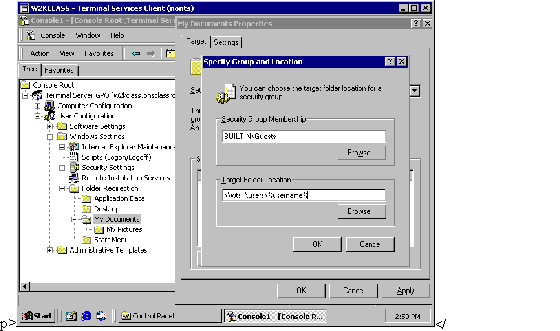
Figure 5, Folder Redirection: For applications that do not save to My Documents, you will have to either implement an NT 4.0 style .ADM file or change the application's registry settings with a script at login.
For Internet Explorer, we need to redirect the temporary Internet files to a directory on the local Terminal Server. I find it easiest to set the user's IE cache location by editing the default user's profile on the Win2K Terminal Server prior to users logging on for the first time. But in larger environments or on servers that the users already have established profiles, this may be accomplished at login by using a script. I prefer KIXtart or WSH scripts for this purpose, but third-party vendors such as Script Logic (www.scriptlogic.com) can provide a GUI based application to make this easier.
To edit the Default User's profile prior to the log on, use regedt32.exe and load the Default User's ntuser.dat as a hive (found in the Documents and Settings directory on the system drive). The entry that needs to be changed to redirect the cache is located in the following registry key.
HKEY Current User\Software\Microsoft\Windows\Current Version\Explorer\User Shell Folders\
"Cache"="%systemdrive%\Inettemp" REG_EXPAND_SZ
Once the value is changed you need to unload the hive so that users can access it again.
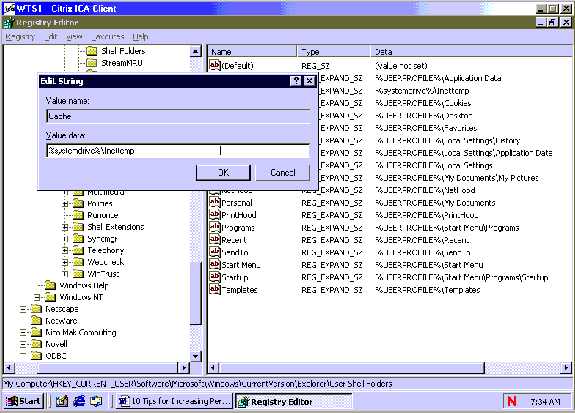
Figure 6, Editing Default User Logon: Using the system drive variable will create a directory on the local machine where all temporary Internet files will be stored.
Change the default value of this entry to reflect your environment (see Figure 6, above). I use %systemdrive%\Inettemp in my installations, but this can be changed to reflect your needs. Using the system drive variable will create a directory on the local machine where all temporary Internet files will be stored The directory should have permissions set so users can read and write to it and a schedule should be set up to delete these files on a regular basis. Changing this to a fixed directory on the machine instead of their home directory will accomplish a couple of things. First, it will keep these temporary files out of the user's profile. Second, it will keep the files out of the Home Directory and help to reduce the space used by home directories. This way you are killing two birds with one stone.
Other applications tend to write their info into the profile also. These applications will need to be looked at on a case-by-case basis to determine the following:
- Is it saving data to the profile? And, if so, is it affecting the profile size?
- If you answered yes to the first question, can this be changed? Are the settings for this application stored in the registry, an INI file or is it "hard-coded" so that it cannot be changed?
If the information is stored in the registry you will need to track the registry settings with a utility like REGMON (www.sysinternals.com) and make the appropriate changes as specified above. If it is stored in an INI file, you will need to determine if the program is reading a machine or user-specific INI file, and if you can make changes to it. Sometimes, contacting the application vendor for this information can prove extremely useful and help to speed up the process.
Tip #7: When Using Office 97 or 2000, Disable Background Grammar Checking
This may not be something that will make some users extremely happy, but if your company uses Office on a consistent basis, it may really improve performance. Some scalability tests have shown that background grammar checking can cut your number of users in half.
I recommend changing these with a script at logon, but you can also make these changes on new installation to the default user so that every new user automatically has them (see Figure 7, below).
For Office 97 the registry entry is as follows:
HKEY_CURRENT_USER\Software\Microsoft\Office\8.0\Word\Options
"AutoGrammar"="0"
For Office 2000:
HKEY_CURRENT_USER\Software\Microsoft\Office\9.0\Word\Options
"AutoGrammar"=0 REG_DWORD
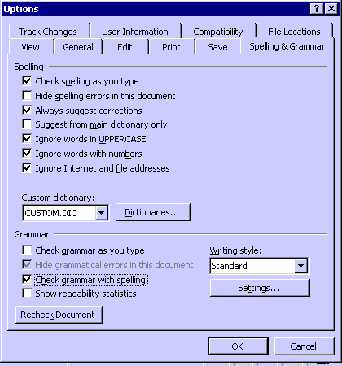
Figure 7, Disabling AutoGrammar: Setting the AutoGrammar settings in the registry is basically changing this setting for the user.
Tip #8: Optimize Partition Cluster Size
During install, Win2K will create the NTFS partition with a 512 byte cluster size. This is considered, by most admins, to be too small. To increase the size of the cluster, format your partition prior to the install by mounting the drive in another NT machine and manually formatting it within the running operating system. On a standard system, partitions with a 4096 byte cluster size is generally optimal. You can use disk administrator to do this or run a manual format with the format command.
Format : /FS:NTFS /A:
Tip #9: Increase the SMB Size for Applications that do Copy/Move Functions
When running applications that use a lot of copy or move functions to a remote server, the speed at which this function completes is determined by network speed (of course) and by the SMB size. NT/2000 negotiates the SMB size and will generally set this to 4K blocks for functions that are moving or copying data to a remote server. By increasing this block size, you will allow the server to complete its file copies faster. This will increase the performance of the application making the copy/move calls.
The maximum value this can be set at is 64K. For most Ethernet environments, a size of around 14k or 14,596 bytes is optimal. Setting this to the maximum of 65,535 bytes is not suggested, however. This setting is located in the registry at:
HKEY_LOCAL_MACHINE\System\Current Control Set\Services\LanmanServer\Paramerters
"SizReqBuf"= 14596 REG_DWORD
For more information on the SMB size negotiation, see MS article Q223140.
Tip #10: Configure the Page File, Early and Properly
In NT 4.0, the page file is set to the amount of physical RAM + 12 MB. In Win2K terminal servers, this is considered too low. The default recommended page file is 1.5 times the amount of RAM in the server. This can vary between 1.5 times the amount of RAM all the way to 2.5 times the amount of RAM. Most Windows and NT gurus consider this unusual. But in other application hosting environments this is almost the standard. (Example: Sun Microsystems recommends the swap space be set at 2.2 times the amount of RAM for its Solaris 7 OS.)
For maximum performance, set the page file to two times the amount of RAM and move it off of the OS partition. Moving the page file is done not only for performance reasons but it will also keep that enormous pagefile.sys from crowding your system partition. Imagine trying to fit a 4 GB page file on your current system partition -- Ouch!
See Figure 8, below, for instructions:
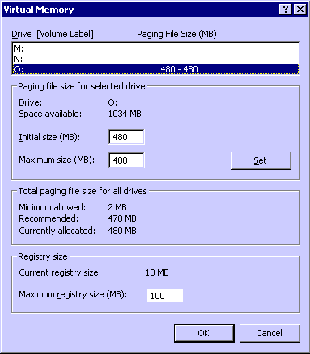
Figure 8, Setting Virtual Memory: In Windows 2000, the Page File Properties can be configured by going into the properties of My Computer, selecting the Advanced tab, Performance, then selecting the change option in the Virtual Memory box.
With your basic NT skills, a good Internet connection, and this list in hand you should be well on your way to terminal services nirvana. Enjoy.
Ron Oglesby is the Citrix and Terminal Services team leader at Progressive Network Solutions in Downers Grove, Illinois. When he is not hacking the registry on his Windows 2000 server he is busy trying to finish his computer lab in his basement. He can be reached at .
More articles by Ron Oglesby:
|